Lennox S40 Smart Thermostat Support
Get Started with Your Lennox S40 Smart Thermostat
Welcome to your go-to resource for getting started, setting up your thermostat, and solving common issues. From step-by-step guides to troubleshooting tips, we’ll help you unlock the full potential of your thermostat and keep your home comfort running smoothly. |
Your Home Comfort Command Center
Just a few quick steps to get your Lennox S40 Smart Thermostat set up online and to redefine comfort and efficiency for your entire home.

Set Up Wi-Fi
Once your Lennox Smart Thermostat is connected to Wi-Fi, you’re ready to create an account and take control. If you already have an account, simply sign in using your email and password.

Create Account / Login
Once your Lennox Smart Thermostat is connected to Wi-Fi, you’re ready to create an account and take control. If you already have an account, simply sign in using your email and password.

Enable Advanced Diagnostics
Protect your investment and peace of mind with active monitoring of system operations through your Lennox S40 Smart Thermostat. This feature is free of charge and provides basic maintenance reminders, alerts you of potential issues, and can even allow you to remotely share diagnostics with your local Lennox dealer to troubleshoot and fix problems. This proactive care helps eliminate downtime and avoid unnecessary service visits and repair costs, ensuring nothing short of perfect air.

Download the Lennox Home App
You can now access your account through either your Lennox Smart Thermostat or the app. Add a new thermostat, create a new account, or change your settings, whenever you want.
Set Up Wi-Fi
From your thermostat's home screen, go to Menu > Settings > Wi-Fi.
Slide the option to the ON position to enable Wi-Fi.
Press on "Not Connected" to display a list of available access points.
Locate home network and select the network name.
Enter the home Wi-Fi network password and press join to continue. If successful the Thermostat Connectivity Status indicator will show checkmarks across all connections
Create Account / Login
Create Your Account Login Credential on your Lennox Smart Thermostat
Select "Create New Account".
Enter account details such as your first and last name, phone, email address, and password.
Select whether you want to receive e-mail updates, reminders and performance reports.
Select allow your dealer to receive notifications (highly recommended).
Select agree to EULA.
Enter your information and select Next. Enter your country/region, address, city, state, and zip code.
Select Create Account.
Enable Advanced Diagnostics
From your thermostat's home screen, go to Menu > Settings > Dealer Support Services
There are two screens under this section, Service Contact Info and Dealer Support Access. If you wish to allow your service provider direct access for troubleshooting your system, then select the following (highly recommended):
Remote Sharing: “ON” - Allows your Lennox Dealer to remotely evaluate the status of your system to ensure optimal performance.
Advanced Diagnostics & Troubleshooting: “ON/ALWAYS” - You will always give authorization to your Lennox Dealer to troubleshoot your system remotely. “OFF” - You will not give authorization to your Lennox Dealer to troubleshoot your system and address system performance remotely.
Alerts and Notifications: “ON” - Allows your Lennox Dealer to receive updates when your system needs maintenance.
Note: All three options must be toggled on for Advanced Diagnostics & Troubleshooting to function.
Download the Lennox Home App
Search for the “Lennox Smart Thermostat App” in the Apple App Store or on Google Play, and download to your smartphone or tablet.
From your home screen, go to Menu > User Account and enter your credentials.
If you already have an account and are connecting multiple thermostats, select “Existing Account” and use your credentials to connect them.
Key Features and Tools
Knowing the details of a few key features will make both you and your home smarter.
Adjusting the Temperature
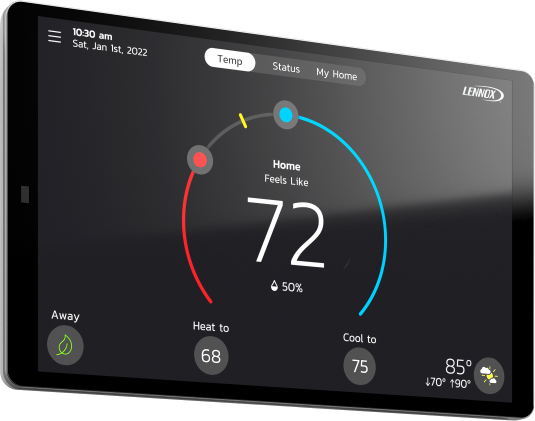
Tap your thermostat’s home screen to go to the horseshoe-shaped dial where you can adjust the temperature in either of two ways.
1. Using the Horseshoe Dial
Touch the red circle to adjust the temperature in heating mode and the blue circle to adjust it in cooling mode. If Perfect Temp* is enabled, you’ll see one dial that allows you to set your desired temperature.
Using the Horseshoe Dial
Touch the red circle to adjust the temperature in heating mode and the blue circle to adjust it in cooling mode. If Perfect Temp* is enabled, you’ll see one dial that allows you to set your desired temperature.
2. Tap “Heat To” or “Cool To” Icons
Tap either of the "Heat To" or "Cool To" icons where a detailed horseshoe dial will allow you to select the perfect heating or cooling temperature setpoint.
Tap “Heat To” or “Cool To” Icons
Tap either of the "Heat To" or "Cool To" icons where a detailed horseshoe dial will allow you to select the perfect heating or cooling temperature setpoint.
One-Touch Away Mode
Overrides your regular programming schedule with a single touch and sets back your heating and cooling set points to save energy.
Smart Home Integration
Effortlessly integrates with a range of smart home devices—from premium smart home systems like Control4 to popular virtual assistants like Amazon Alexa and Google Assistant now enabled by Matter.

Smart Away™ Mode
Smart Away™ Mode uses the GPS in your smartphone to detect when you’re leaving, and automatically adjusts the temperature to a more energy-efficient setting. If you or a family member returns home, Smart Away then returns your system to a normal schedule and comfortable temperature.
1. First activate Smart Away on your thermostat.
2. Enable Smart Away on the mobile app. Go to Menu > Settings > Away and turn on "Smart Away".
3. The GPS distance at which Smart Away detects your smartphone is factory set at a 2-mile radius. To change this, press the "+" or "-" buttons under Smart Away Fence.
*For Smart Away to function properly, location services must be enabled on your mobile device.
Schedule IQ™
Combines with Smart Away™ Mode to learn your routine and create an energyoptimizing schedule of operation.*
To enable Schedule IQ, go to Menu > Schedule > Schedule IQ > Edit. You can set your preferred temperature for up to four time periods per day by sliding the blue and red circles along the line on the touchscreen. Add the Lennox Smart Thermostat App to your smart device and your system will automatically adjust the temperature when you’re away, saving energy and money.
*Smart Away must be turned on in order for Schedule IQ to function.
FAQs
Find answers to common questions about your thermostat from setup and Wi-Fi connection to troubleshooting and energy-saving tips.